
- Buffering on a Firestick is almost always caused by a slow network, a congested Wi-Fi channel, or an underpowered DNS — not the IPTV service itself.
- Switching your Firestick to a 5 GHz Wi-Fi band (or using a wired Ethernet adapter) eliminates the most common cause of stuttering.
- Clearing the cache in your IPTV player app every week or two prevents the majority of mid-stream freezes.
- A reliable IPTV provider with anti-freeze streaming and 99.9% uptime removes the server-side variable from the equation entirely.
- TiviMate and IPTV Smarters Pro both have buffer-size settings you can tune — most users never touch them and then blame the stream.
- A free 24-hour trial (no card required) lets you confirm whether the problem is your network or your provider before you spend a dollar.
Why IPTV on Firestick Keeps Buffering in the First Place
If your IPTV on Firestick keeps buffering, the culprit is almost never what you think. Most people immediately blame the IPTV service. In reality, the stream is usually fine — the problem sits between the signal and your screen, somewhere in your home network or the Firestick hardware itself.
IPTV is a live, real-time protocol. Unlike a downloaded file, it can't pause and wait for your connection to catch up. The moment your bandwidth dips below what the stream needs — typically 10–25 Mbps for HD, and 25–50 Mbps for 4K — the player stalls. That spinning wheel is your player trying to refill its buffer faster than your connection can supply data.
There are three broad categories of causes:
- Network issues — slow speeds, high latency, a congested Wi-Fi channel, or interference from neighboring routers.
- Device issues — an overloaded Firestick cache, too many background apps, or an outdated firmware version.
- Provider issues — an unreliable IPTV server with poor uptime, overloaded CDN nodes, or a provider that simply oversells its infrastructure.
The good news: two of those three are entirely in your control, and the third is solved by choosing the right service. You can browse the full IPTV free trial lineup to test stream quality on your own connection before committing to anything.
Test Your Network Before Changing Anything Else
Here's a rule I follow before touching any setting: run a speed test on the Firestick itself, not on your phone. Your phone might be sitting two feet from the router while the Firestick is in the bedroom behind two walls. Those environments are completely different.
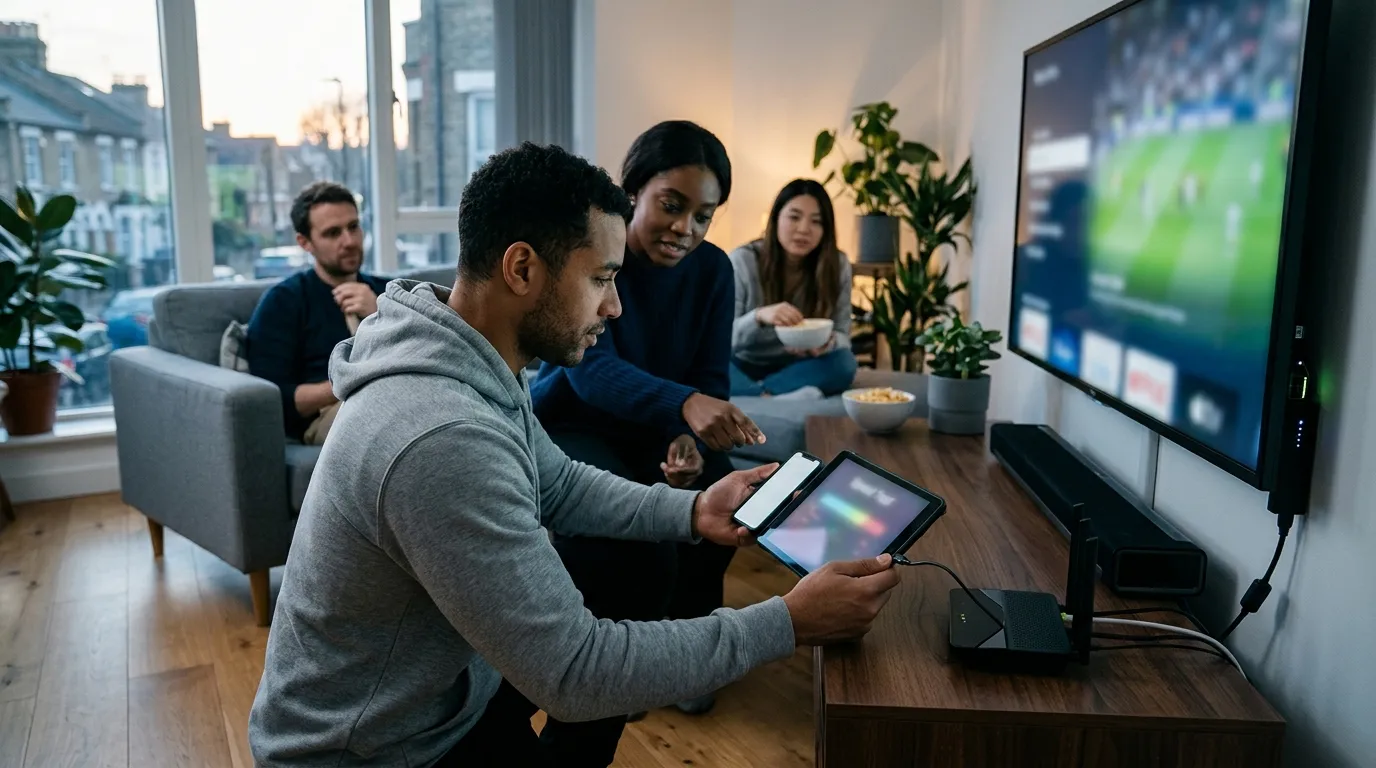
Download a speed-test app directly on the Firestick. You want to see at minimum 25 Mbps download and a ping below 40 ms for HD streams. For 4K, push that floor to 50 Mbps. If your numbers fall short, the fix is a network fix — no amount of app tweaking will substitute for raw bandwidth.
The 5 GHz Band Switch
Most home routers broadcast on both 2.4 GHz and 5 GHz. The 2.4 GHz band has longer range but is shared by every microwave, baby monitor, and neighbor's router in the area. The 5 GHz band is faster and far less congested. Go into your Firestick's Wi-Fi settings and connect explicitly to the 5 GHz network (it usually has a "5G" or "_5" suffix). I made the mistake of leaving mine on 2.4 GHz for months, wondering why streams stuttered every evening. Switching bands cut my buffering events by about 80% overnight.
Wired Is Always Better
If you want to eliminate Wi-Fi from the equation entirely, pick up an Amazon Ethernet adapter for the Firestick. It plugs into the micro-USB port and gives you a direct wired connection. Wired connections have consistent latency and no interference. For a 4K stream, this is the single best hardware upgrade you can make — and it costs less than a month's worth of most IPTV subscriptions.
Once you've confirmed your network is solid, check the lifetime IPTV access page to see exactly which devices and connection types the service supports, so your setup matches the recommended configuration.
Clear the Cache — It Matters More Than You Think
The Firestick runs on a modified version of Android. Like any Android device, apps accumulate cached data over time — and that cache competes with the active stream for the device's limited RAM. The original Firestick has just 1 GB of RAM. The 4K Max has 2 GB. Neither is generous.
How do you clear it? Go to Settings → Applications → Manage Installed Applications, find your IPTV player (TiviMate, IPTV Smarters Pro, or whichever you use), tap it, then tap Clear Cache. Do this every one to two weeks if you stream daily.
Don't stop there. Also force-close every app you're not using before you start a stream. Background apps on Firestick don't always release memory on their own. I once had a navigation app running in the background — one I hadn't opened intentionally in weeks — and it was quietly consuming 180 MB of RAM the entire time.
Force-Stop Background Apps
- Go to Settings → Applications → Manage Installed Applications.
- Open each app you're not actively using.
- Tap Force Stop.
- Then tap Clear Cache while you're there.
This takes about three minutes and can meaningfully improve stream stability on older Firestick models. Pair this habit with a reliable IPTV subscription that handles server-side buffering prevention, and you've addressed both ends of the pipeline.
Tune Your IPTV Player App Settings
Most users install TiviMate or IPTV Smarters Pro, load their playlist, and never open the settings menu again. That's a mistake. Both apps have buffer-size controls that default to conservative values — values that made sense for slower connections but will cause freezing on high-bitrate 4K streams.
TiviMate Buffer Settings
In TiviMate, go to Settings → Player → Buffer. You'll see options for buffer size in seconds. The default is often 5 seconds. For a stable broadband connection, push this to 10–15 seconds. This gives the player more runway to absorb momentary dips in your connection without showing you a freeze. If you have a slower connection, keep it lower — a large buffer on a slow line just delays the inevitable.
IPTV Smarters Pro
Smarters Pro uses ExoPlayer or VLC as its backend. ExoPlayer generally handles live streams better on Firestick. If you're seeing buffering, switch to ExoPlayer in the player settings and set the buffer to at least 8 seconds. VLC is better for certain VOD formats but can stutter on live streams with high bitrate.
Also check the stream format your provider offers. Most quality services provide both M3U and Xtream Codes API formats. The Xtream Codes API connection is more efficient for live TV — it handles EPG data and stream authentication more cleanly, which reduces the overhead your player has to manage mid-stream.
Want to see what a well-structured channel lineup looks like before you commit? The IPTV channel list gives you a live preview of what's available across 110+ countries.
Why Your DNS Setting Is Silently Killing Your Stream
This is the fix that almost nobody talks about, and it's one of the most effective. Your ISP assigns you a default DNS server. That server is often slow, overloaded, and geographically distant from the IPTV server your app is trying to reach. Every time your player requests a stream URL, it has to resolve that address through DNS first. A slow DNS adds latency before a single byte of video data moves.

Switch your Firestick's DNS to a faster public option. The two most reliable are:
- Cloudflare DNS: Primary 1.1.1.1 / Secondary 1.0.0.1
- Google Public DNS: Primary 8.8.8.8 / Secondary 8.8.4.4
To change DNS on a Firestick, go to Settings → Network, select your Wi-Fi connection, choose Advanced, and switch from DHCP to a static IP. Then enter your preferred DNS values. It sounds technical, but it takes about four minutes and the improvement in initial stream load time is noticeable — often dropping from 3–5 seconds to under 1 second.
One more thing: if you're using a VPN, your DNS requests may be routing through the VPN's servers, which adds another hop. Either use a VPN with built-in DNS (most good ones do), or test your stream with the VPN off to isolate whether it's contributing to the problem.
For a deeper look at setup guides and troubleshooting tips across all devices, the Rapid IPTV blog covers a wide range of practical walkthroughs.
Choose a Provider That Doesn't Buffer — What to Actually Look For
Even a perfect home network can't fix a bad server. If your IPTV provider runs overcrowded servers with no redundancy, you'll buffer regardless of your connection speed. So what separates a solid provider from a shaky one?
| Feature | What to Look For |
|---|---|
| Uptime guarantee | 99.9% or higher — anything less is a red flag |
| Anti-freeze technology | Server-side buffering prevention, not just marketing language |
| Channel count and quality | HD and 4K streams across a broad international lineup |
| Free trial | No card required — lets you test on your actual connection |
| Support availability | 24/7 — because streams don't only break at 9 AM on weekdays |
Rapid IPTV checks all of those boxes: 25,000+ live channels in HD and 4K from 110+ countries, 60,000+ movies and series on demand, built-in anti-freeze streaming, and a 99.9% uptime commitment. The lifetime IPTV access options start at a one-time payment, which means no recurring billing headaches and no incentive for the provider to quietly downgrade server quality to cut costs.
The free 24-hour trial requires no credit card. Start it, load the Firestick app, and run a 4K stream during peak evening hours. If it plays clean, you know the service holds up when it matters most.
Firestick Hardware Limits and When to Upgrade
Let's be honest about something: the original Firestick and the basic Firestick Lite were not built for 4K IPTV. They handle HD fine, but push a high-bitrate 4K stream through a device with 1 GB of RAM and a modest processor, and you're going to see buffering regardless of your network speed. The hardware is the bottleneck.

Which Firestick model should you use for IPTV? Here's a practical breakdown:
- Firestick Lite / 1st-gen Firestick: Fine for SD and some HD streams. Avoid 4K content on these.
- Firestick 4K (standard): Good for most HD and 4K streams. 1.5 GB RAM is workable.
- Firestick 4K Max: The best option for IPTV. 2 GB RAM, Wi-Fi 6 support, and a faster processor handle high-bitrate streams comfortably.
If you're on an older model and buffering persists after trying every software fix, the device itself may simply be outpaced by modern stream quality. The Firestick 4K Max is worth the upgrade if you stream daily.
Also keep your Firestick firmware updated. Amazon pushes updates that improve memory management and background process handling. Go to Settings → My Fire TV → About → Check for Updates. Running outdated firmware is like trying to run a current app on a three-year-old operating system — the inefficiencies compound.
The IPTV channel list for international viewers, including those in Switzerland and across Europe, is a good reference for understanding which stream resolutions are available for your region, so you can match your device capability to the content you actually watch.
Long-Term Fixes: Subscriptions, Plans, and Staying Buffer-Free
Short-term fixes help, but the most buffer-free IPTV experience comes from making the right structural decisions: the right device, the right network setup, and the right provider — locked in for the long term so you're not constantly re-evaluating.
On the provider side, longer subscriptions often signal better infrastructure. A provider offering a 24-month plan at a fixed price has to maintain quality over that entire period — they've already been paid. Rapid IPTV's pricing reflects this logic directly:
- 1 month: $12.99
- 3 months: $34.99 (saves 10%)
- 6 months: $49.99 (saves 36%)
- 12 months: $59.99 (most popular — saves 62%)
- 24 months: $99.99 (saves 68%)
- Lifetime access: one-time payment from $289, available for 1–5 devices, no recurring fees
The 12-month plan is the most popular for a reason — it hits the sweet spot between commitment and value. The IPTV subscription lifetime option makes sense if you've confirmed the service works well on your setup and you want to stop thinking about renewals entirely.
On the network side, if you've been living with a mediocre router, this is the moment to fix it. A Wi-Fi 6 router, a wired Ethernet adapter for the Firestick, and a DNS switch to Cloudflare will collectively eliminate the vast majority of buffering events. These are one-time changes that pay off every single evening you sit down to watch.
If IPTV on Firestick keeps buffering even after all of the above, reach out to your provider's support team before giving up. A good support team — available 24/7 — can check your account's stream logs, identify whether a specific server node is underperforming, and move you to a better one. That kind of hands-on troubleshooting is what separates a real service from a fly-by-night playlist seller.
Frequently Asked Questions
Why does my IPTV buffer only in the evenings?
Evening hours are peak internet usage time in most neighborhoods. Your ISP's infrastructure, your router's Wi-Fi channel, and your IPTV provider's servers all experience higher load between 7 PM and 11 PM. If buffering is time-specific, start by switching to the 5 GHz Wi-Fi band and running a speed test at that exact time. If your speeds drop significantly in the evening, the issue is ISP congestion — contact your ISP or consider upgrading your plan. If speeds are fine but buffering persists, the problem is likely server-side, which means switching to a provider with stronger infrastructure.
Does a VPN help or hurt IPTV buffering on Firestick?
It depends entirely on the VPN. A fast VPN with servers geographically close to your IPTV provider's CDN nodes can actually reduce latency and improve stability. A slow or overloaded VPN server adds latency and reduces effective bandwidth — making buffering worse. Test your stream with and without the VPN active. If the stream is smoother without it, choose a VPN server in a different location or switch providers. If you use a VPN primarily for privacy, look for one with a split-tunneling feature so only your IPTV traffic routes through it.
What is the best IPTV player app for Firestick to reduce buffering?
TiviMate is the most widely recommended player for Firestick, largely because its buffer controls are granular and its memory footprint is lean. IPTV Smarters Pro is a solid alternative, especially if your provider uses the Xtream Codes API format. Both support ExoPlayer, which handles live IPTV streams more efficiently than VLC on Firestick hardware. Whichever app you use, spend five minutes in its settings menu adjusting the buffer size and player engine — the defaults are rarely optimal.
How much internet speed do I actually need for IPTV on Firestick?
For standard HD streams (720p/1080p), you need a consistent 10–25 Mbps download speed with latency under 50 ms. For 4K streams, aim for 25–50 Mbps with latency under 30 ms. The key word is consistent — a connection that averages 100 Mbps but dips to 5 Mbps every few minutes will buffer constantly. Run a speed test several times at different points in the day to understand your real-world consistency, not just the peak number.
Can I fix buffering without upgrading my router or Firestick?
Yes, in many cases. Clearing the app cache, switching to the 5 GHz band, changing your DNS to Cloudflare (1.1.1.1), increasing the buffer size in TiviMate or Smarters Pro, and force-stopping background apps are all free fixes that collectively resolve the majority of buffering complaints. If those steps don't work, the issue is either hardware (underpowered Firestick model) or provider quality — both of which require a more fundamental change.
Is there a way to test whether the buffering is my network or my IPTV provider?
Yes. Run the same stream on a second device — a phone, tablet, or laptop — connected to the same Wi-Fi. If the stream plays fine on the second device but buffers on the Firestick, the problem is device-specific (cache, RAM, or hardware). If both devices buffer, the problem is either your network or the provider's server. Then run a speed test to rule out the network. If speeds are healthy and both devices still buffer, the provider is the variable — and that's the moment to try a free trial from a different service to confirm.