
- The Firestick 4K Select runs on Fire OS and supports sideloaded IPTV apps — you just need to enable "Apps from Unknown Sources" first.
- TiviMate and IPTV Smarters Pro are the two apps that work best on this device; TiviMate has the cleaner interface.
- A minimum 25 Mbps connection handles HD streams; bump to 50 Mbps or higher for reliable 4K playback.
- Rapid IPTV's subscription gives you 25,000+ live channels and 60,000+ on-demand titles with 99.9% uptime.
- Rapid IPTV offers a free 24-hour trial — no card required — so you can test stream quality before paying anything.
- Plans start at $12.99/month; the 12-month plan at $59.99 saves you 62% and is the most popular choice.
Getting IPTV on Firestick 4K Select running properly takes about ten minutes if you know what you're doing — and about two frustrating hours if you don't. I've been through both experiences. The first time I set this up, I forgot to enable "Apps from Unknown Sources" and spent an embarrassing amount of time wondering why the APK installer kept failing silently. Once you know the exact sequence, though, this stick becomes one of the cleanest IPTV players you can buy for under $50. For a reliable service to pair it with, Rapid IPTV is what I keep coming back to — 25,000+ channels, instant activation, and support that actually answers.
The Firestick 4K Select is Amazon's mid-range stick, sitting between the standard Firestick and the 4K Max. It supports Dolby Vision, HDR10+, and AV1 decoding — all of which matter if your IPTV provider streams in genuine 4K. Most do not, but the ones that do look stunning on a modern TV. Check the full IPTV channel list to see what's available in HD and 4K before you commit to any plan.
What Makes the Firestick 4K Select Different from Other Sticks
Amazon sells several Fire TV sticks, and the differences matter more than the marketing suggests. The 4K Select uses a quad-core processor clocked at 1.7 GHz with 2 GB of RAM. That's enough for smooth IPTV playback in TiviMate, but you'll feel the ceiling if you run too many background apps simultaneously. Close everything else before you launch your IPTV app — that one habit alone eliminates most buffering complaints I hear from new users.
What separates the Select from the base model is the AV1 hardware decoder. Why does that matter for IPTV? Because more providers are encoding their 4K streams in AV1 to reduce bandwidth without sacrificing quality. If your stick can't decode AV1 in hardware, it falls back to software decoding, which burns through the processor and causes stuttering. The 4K Select handles it natively.
Quick Spec Comparison
| Feature | Firestick (Standard) | Firestick 4K Select | Firestick 4K Max |
|---|---|---|---|
| Resolution | 1080p | 4K / Dolby Vision | 4K / Dolby Vision |
| RAM | 1 GB | 2 GB | 2 GB |
| AV1 Decode | No | Yes (hardware) | Yes (hardware) |
| Wi-Fi | Wi-Fi 5 | Wi-Fi 6 | Wi-Fi 6E |
| Best for IPTV | HD only | HD + 4K | HD + 4K + dense networks |
The Wi-Fi 6 radio in the Select is a real upgrade for IPTV users on crowded home networks. If you have a Wi-Fi 6 router, you'll notice fewer mid-stream drops during peak evening hours compared to the older stick. If your router is still Wi-Fi 5, the difference is minimal — but it's a nice foundation for when you eventually upgrade.
Enabling Sideloading and Installing Your IPTV App
Fire OS doesn't allow third-party app installs by default. You need to flip one setting. Go to Settings → My Fire TV → Developer Options → Apps from Unknown Sources and turn it on. Amazon will show a warning screen — ignore it and confirm. That's the entire unlock process.
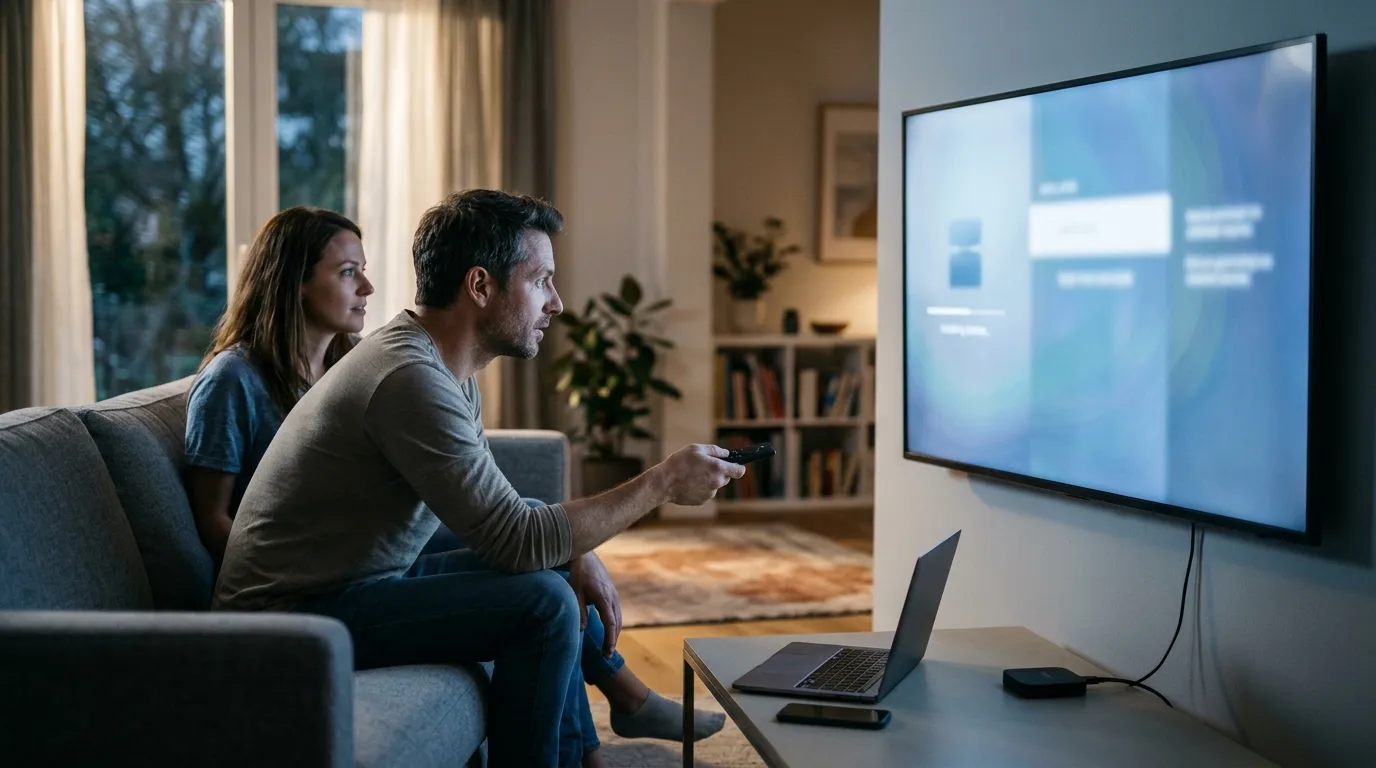
Now you need a way to install the APK. The cleanest method is the Downloader app, which you can find directly in the Amazon Appstore. Install it, open it, and type in the direct APK URL for whichever IPTV player you want. No computer required, no USB cables, no fuss.
Two Apps Worth Using
- TiviMate: The better interface of the two. The EPG (electronic program guide) is fast, the channel grid looks sharp on a 4K display, and the buffer settings are actually configurable. The companion app costs a small one-time fee, but the free version works fine to start.
- IPTV Smarters Pro: Slightly more complex UI, but it handles multi-stream accounts well and gives you more visible error messages when something goes wrong — useful for troubleshooting.
I use TiviMate daily. One setting most people miss: go into TiviMate's player settings and set the buffer size to 15 seconds. The default is 5 seconds, which is too short for live sports streams that occasionally spike in bitrate. Fifteen seconds gives the player enough runway to smooth over brief network hiccups without you ever seeing a freeze.
Once your app is installed, you'll need your IPTV provider's M3U playlist URL or Xtream Codes credentials. Rapid IPTV's subscription delivers those credentials instantly after activation — no waiting, no manual ticket required.
Choosing the Right IPTV Subscription for Firestick 4K Select
Not all IPTV services are equal, and the Firestick 4K Select will expose the weak ones fast. A service with poor infrastructure shows up as buffering, channel gaps, and EPG data that's hours off. What should you actually look for?
- Uptime guarantee: 99.9% is the benchmark. Anything lower means outages during the events you actually care about.
- Anti-freeze technology: This means the server automatically reroutes your stream when a node goes down. It's not marketing fluff — you feel the difference during live sports.
- Channel depth: 25,000+ channels across 110+ countries means you're not going to hit a dead end looking for international content.
- VOD library: 60,000+ movies and series on demand keeps the service useful on quiet nights when nothing live interests you.
- Support responsiveness: 24/7 support matters when something breaks at 9 PM on a Saturday.
Rapid IPTV checks every box on that list. Their lifetime IPTV access option is also worth a look if you plan to use the service long-term — a one-time payment from $289 covers 1 to 5 devices with no recurring fees, ever.
IPTV on Firestick 4K Select: Network Setup and Speed Requirements
Your internet connection is the single biggest variable in IPTV quality. The Firestick 4K Select can't fix a slow or unstable connection — it can only work with what it receives. So what do you actually need?
- HD streams (720p/1080p): 15–25 Mbps per stream, stable.
- 4K streams: 40–50 Mbps per stream, with low jitter.
- Multiple simultaneous streams: Multiply the above by the number of devices.
Wired ethernet is always better than Wi-Fi for IPTV, but the Firestick doesn't have an ethernet port. You can buy a USB-C to ethernet adapter that works with the 4K Select — I picked one up for about $12 and it eliminated the last 5% of occasional drops I was seeing over Wi-Fi. If you're in a room far from your router, that adapter is worth every cent.
Also worth checking: your router's QoS (Quality of Service) settings. If you can prioritize streaming traffic, do it. Most modern routers let you assign high priority to specific devices. Set the Firestick as high priority and your IPTV streams will get bandwidth preference over background downloads and smart home devices.
Need help getting set up after your purchase? The Rapid IPTV support team is available 24/7 and can walk you through network configuration specific to your setup.
Setting Up Rapid IPTV on Your Firestick 4K Select
Once you have your Rapid IPTV credentials, the actual setup takes under five minutes. Here's the exact sequence that works every time.

- Open TiviMate (or IPTV Smarters Pro) on your Firestick.
- Select Add Playlist and choose Xtream Codes as the connection type.
- Enter your server URL, username, and password exactly as they appear in your Rapid IPTV welcome email.
- Wait for the channel list to load — with 25,000+ channels, this first sync takes 60–90 seconds.
- Once loaded, go to Settings → Player → Buffer and set it to 15 seconds as mentioned earlier.
- Set your preferred stream quality to Auto initially, then lock it to the highest stable quality after a day of use.
One thing I learned the hard way: don't rename your playlist in TiviMate right after the initial sync. The app occasionally loses the connection association when you rename before the EPG data finishes downloading. Wait until the EPG is fully populated — you'll see the channel guide fill in — then rename it whatever you like.
Rapid IPTV works across a wide range of devices beyond the Firestick. Check the full supported devices and setup guide if you want to run the same subscription on an Android TV box, a Smart TV, or your phone simultaneously.
Getting the Best 4K Picture Quality from Your IPTV Setup
The Firestick 4K Select outputs Dolby Vision and HDR10+ — but only if your TV supports those formats and the content is actually encoded that way. Most IPTV streams are HDR10 at best. Does that mean Dolby Vision is irrelevant? Not entirely — some 4K VOD content in your provider's on-demand library does carry Dolby Vision metadata, and the stick will pass it through correctly.
For the sharpest picture on live streams, go into Fire TV Settings → Display & Sounds → Display → Video Resolution and set it to 4K UHD (2160p) with Match Original Frame Rate turned on. That second setting is the one most people miss. It tells the stick to switch the TV's refresh rate to match the stream's native frame rate — 25 fps for European content, 30 fps for North American content — which eliminates the judder you'd otherwise see on motion-heavy sports.
Also turn off any motion smoothing or "soap opera effect" settings on your TV itself. Those TV-side processing features fight against the source signal and make IPTV streams look artificially processed.
IPTV on Firestick 4K Select: Plans, Pricing, and What You Actually Get
Rapid IPTV's pricing is straightforward. No hidden fees, no device rental charges, no installation costs. Here's what the plans look like for a single device.

| Plan | Price (USD) | Savings | Note |
|---|---|---|---|
| 1 Month | $12.99 | — | Good for testing |
| 3 Months | $34.99 | 10% | |
| 6 Months | $49.99 | 36% | |
| 12 Months | $59.99 | 62% | Most Popular |
| 24 Months | $99.99 | 68% | |
| Lifetime | From $289 | No recurring fees | 1–5 devices |
The 12-month plan at $59.99 works out to exactly $5/month. For 25,000+ live channels, 60,000+ on-demand titles, and 4K streams — that's a hard number to argue with. Subscriptions auto-renew at the end of each term, so set a calendar reminder if you want to switch plans before renewal. The free 24-hour IPTV trial requires no credit card, so there's genuinely zero risk to testing the service first.
Two-to-five device plans are also available at higher price points — useful if you want to run the service on the Firestick in the living room, an Android box in the bedroom, and a tablet for travel, all under one account.
Troubleshooting Common IPTV Issues on Firestick 4K Select
Even with a solid setup, you'll occasionally hit an issue. Here are the ones that come up most often and exactly what to do about each.
Buffering on Live Channels
First, run a speed test directly on the Firestick using a speed test app from the Amazon Appstore. If you're getting the speeds your plan promises, the issue is almost always the TiviMate buffer setting being too low. Raise it to 15 seconds. If speeds are low, reboot your router and move the stick closer to the access point, or use the ethernet adapter mentioned earlier.
EPG Not Loading
This happens when the EPG URL times out during a slow sync. In TiviMate, go to Settings → EPG → Update EPG and force a manual refresh. If it still fails, check that your Rapid IPTV credentials haven't expired — a lapsed subscription stops EPG data delivery too.
App Keeps Crashing
The Firestick 4K Select has 2 GB of RAM, which sounds like enough but fills up fast with Fire OS background processes. Go to Settings → Applications → Manage Installed Applications, find any apps you're not using, and force-stop them. Clearing the cache on TiviMate (not the data — just the cache) also helps without wiping your settings.
Channels Show as Offline
Individual channels occasionally go offline for maintenance. If more than a handful are down simultaneously, it usually means a server-side issue. Check in with the Rapid IPTV blog for any service announcements, or contact support directly. With 99.9% uptime, widespread outages are rare — but they do happen once in a while.
Running IPTV on Firestick 4K Select long-term is low-maintenance once the initial setup is dialed in. The combination of the stick's hardware decoder, TiviMate's configurable buffer, a solid Wi-Fi 6 connection, and a reliable IPTV subscription from Rapid IPTV covers every scenario I've thrown at it — daily TV, live sports, international channels, and late-night VOD sessions.
Frequently Asked Questions
Can the Firestick 4K Select actually play 4K IPTV streams?
Yes. The 4K Select has native 4K output with Dolby Vision and HDR10+ support, plus hardware AV1 decoding. As long as your IPTV provider streams in 4K and your internet connection delivers at least 40–50 Mbps stably, the stick handles it without any software workaround.
Do I need to jailbreak the Firestick to install an IPTV app?
No. Enabling "Apps from Unknown Sources" in Developer Options is a built-in Fire OS feature — it's not a jailbreak. Amazon includes it specifically for sideloading apps outside the Appstore. The process takes about 30 seconds and is fully reversible.
What happens if I exceed my device limit on Rapid IPTV?
Rapid IPTV plans are tied to a set number of simultaneous streams — one device on the base plan, up to five on multi-device plans. If you try to stream on more devices than your plan allows at the same time, the additional stream won't connect. Upgrading your plan resolves it instantly.
Is the free trial actually free — no credit card?
Yes. Rapid IPTV's 24-hour trial requires no payment information. You get full access to the channel lineup and on-demand library for 24 hours. If you want to continue after the trial, you choose a paid plan at that point.
Which is better for IPTV on Firestick — TiviMate or IPTV Smarters Pro?
TiviMate is the better daily driver. The interface is faster, the EPG grid is cleaner, and the buffer controls are more granular. IPTV Smarters Pro is worth having as a backup because its error messages are more descriptive — useful when you're troubleshooting a connection issue and want to know exactly what's failing.
Can I use Rapid IPTV on devices other than the Firestick 4K Select?
Rapid IPTV supports a wide range of devices: Android TV boxes, Samsung and LG Smart TVs, Apple TV, iPhone, iPad, Android phones and tablets, Roku, MAG boxes, Windows, and Mac. One subscription covers all of them up to your plan's device limit, so you can watch on the Firestick at home and your phone while traveling.